Automate Your Reporting. Save Hours Every Week.
Stop manually running reports. With our Auto Report Scheduler, your Transport Management System works in the background, delivering the insights you need, exactly when you need them.
Reports That Run Themselves
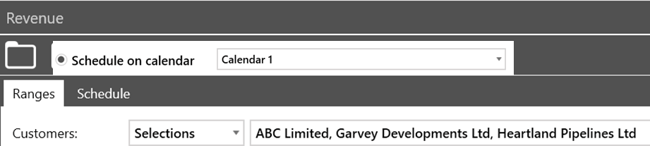
Set up any report once and let it run automatically at scheduled times and dates. Whether it’s daily performance summaries, weekly KPIs, or monthly financial reports, your data is always up to date and delivered on time.
Delivered Straight to Your Inbox
No more logging in or exporting files. Scheduled reports are automatically generated and emailed to your chosen recipients in your preferred format, keeping your team informed without lifting a finger.
Flexible Scheduling That Fits Your Business
Every operation is different. That’s why the Auto Report Scheduler gives you complete control:
- Run reports daily, weekly, fortnightly, or monthly
- Schedule reports for specific days of the week
- Create advanced calendars for complex cycles (e.g. last day of the month)
- Automate rolling reports with dynamic date ranges
Always Accurate with Relative Dates
Reports stay relevant with relative date ranges automatically adjusting based on when they run.
Want a rolling 7-day report? Or last month’s performance? Set it once, and your report will always reflect the correct timeframe.
Precise Data, Exactly How You Need It
Need to report on specific customers, depots, or job types?
Use flexible selection options to include exactly the data you want, without being limited to simple “from–to” ranges.
Built for Busy Transport Teams
- Eliminate repetitive admin tasks
- Reduce manual errors
- Keep stakeholders informed automatically
- Free up time for higher-value work
Turn Reporting Into a Competitive Advantage
With automated reporting, your business becomes more proactive, more informed, and more efficient.
Let your TMS handle the reporting, so your team can focus on moving your operation forward.